Graphically editing logs with the Paint Log tool
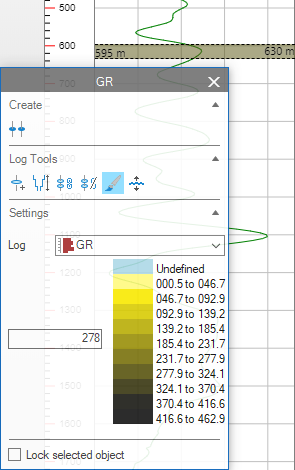
The Paint Log tool in the Editing Tools palette click to enlarge
With this tool, you can assign values to a log using your mouse in a Well View. To use the tool:
- Display the log you want to edit in a Well View and open the Editing Tools (Tools > Editing Tools in the Workspace group at the right of the main Strip, or Shift+F1).
- Select the Paint Log tool
 in the Wellbore Tools section of the tools palette.
 - Select the log you want to edit from the Log drop-down list.
- For a continuous property, enter a value in the field on the left of the Settings section of the palette, or click on one of the ranges of values on the right to insert a value. (For a discrete property, see below.)
- Click and drag vertically in the log displayed in the Well View and release the mouse.
The log will be set to the value in the tool over the depth range you selected.
Painting discrete logs
For a discrete property, you can specify two values from the drop-down lists on the left of the Settings section.
Using the upper list, you can select the value you want to be used when dragging in the log with the left mouse button. If you right-click in the log and drag, the value in the lower drop-down list will be inserted.